
Upload a photo to get started.
How to Use PSCSize Background Remover – Step-by-Step Guide
Step 1: Upload Your Photo
Open the PSCSize Background Remover tool and click the Upload Your Photo button. Select an image from your mobile phone, tablet or computer. The tool supports JPG, PNG and WebP images.
Step 2: Remove the Image Background
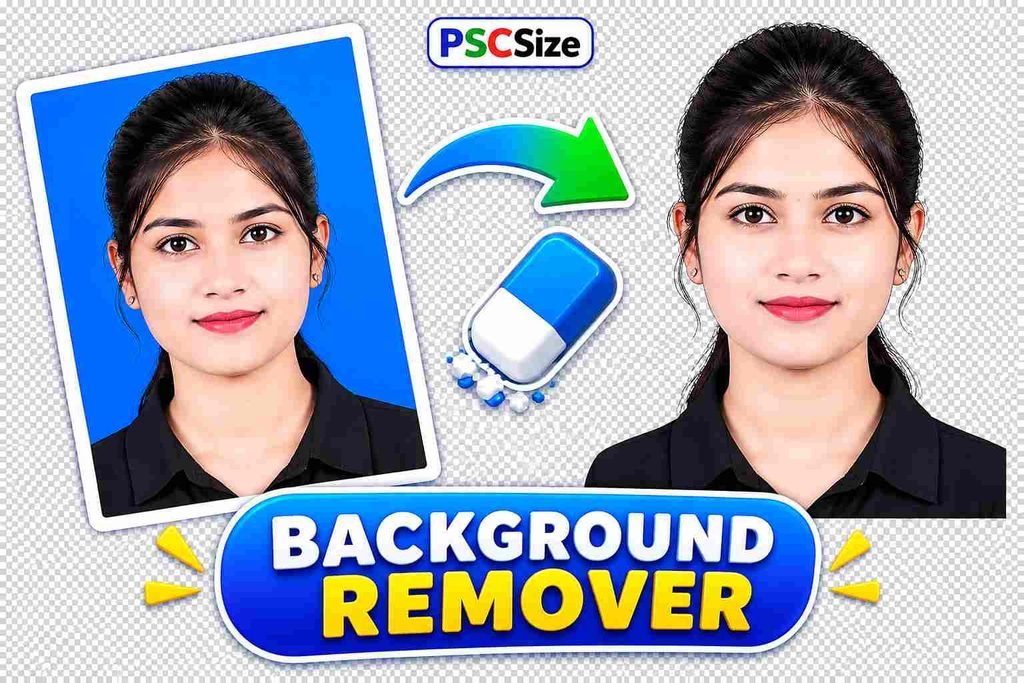
Click the Remove Background button and wait for the AI processing to finish. The tool will detect the subject and remove the background from your uploaded photo.
Step 3: Preview Your Edited Photo
After background removal, check the Edited Photo preview. Compare it with the original photo to see the result.
Step 4: Choose a Background Colour
Select your preferred background:
- Transparent
- White
- Light Blue
- Blue
- Red
- Green
- Custom Colour
You can also select gradient background effects.
Step 5: Adjust Photo Effects
Use the editing controls to improve your image:
- Brightness – Adjust the lightness of your photo.
- Contrast – Improve the difference between light and dark areas.
- Saturation – Adjust the intensity of colours.
Step 6: Download Your Edited Image
Click Download PNG to save your image with a transparent background. Select Download JPG to save your image with a solid background.
Frequently Asked Questions (FAQs)
1. How can I remove an image background online?
Upload your photo to PSCSize Background Remover and click Remove Background. After processing, preview and download your edited image.
2. Is PSCSize Background Remover free to use?
Yes, PSCSize Background Remover is available as a free online tool.
3. Can I make my photo background transparent?
Yes, you can remove the background and download your image in PNG format with transparency.
4. Can I change the background colour of my photo?
Yes, you can choose white, light blue, blue, red, green or a custom background colour.
5. Which image formats are supported?
The tool supports JPG, PNG and WebP image formats for uploading.
6. Can I download my edited photo in JPG and PNG formats?
Yes, you can download your edited image in PNG or JPG format.
7. Can I adjust brightness, contrast and saturation?
Yes, the tool provides brightness, contrast and saturation controls to improve your edited photo.
8. Does the background remover work on mobile phones?
Yes, the PSCSize tool is designed to work on mobile phones, tablets and desktop computers.