
Select PDF files
Drag and drop your PDF files here
Only PDF files are supportedHow to Merge PDF Files Online – Step-by-Step Guide
Step 1: Select PDF Files
Click the “Choose PDF Files” button and select two or more PDF files from your mobile, laptop, or computer.
Step 2: Add Multiple PDF Files
Your selected PDF files will appear in the file list. You can also click “Add More PDF Files” to select additional documents.
Step 3: Arrange PDF File Order
Use the up and down arrow buttons to change the order of your PDF files. The files will be merged in the order displayed in the list.
Step 4: Remove Unwanted Files
If you accidentally select the wrong PDF, click the cross (×) button next to that file to remove it before merging.
Step 5: Enter Output File Name
Enter your preferred file name in the Output File Name box. Your merged document will be downloaded using this name.
Step 6: Merge PDF Files
Click the “Merge PDF Files” button and wait while the tool processes your selected documents.
Step 7: Download Merged PDF
Once the merging process is complete, click “Download Merged PDF” to save your combined document to your device.
Frequently Asked Questions (FAQs)
1. How do I combine PDF files into one document online?
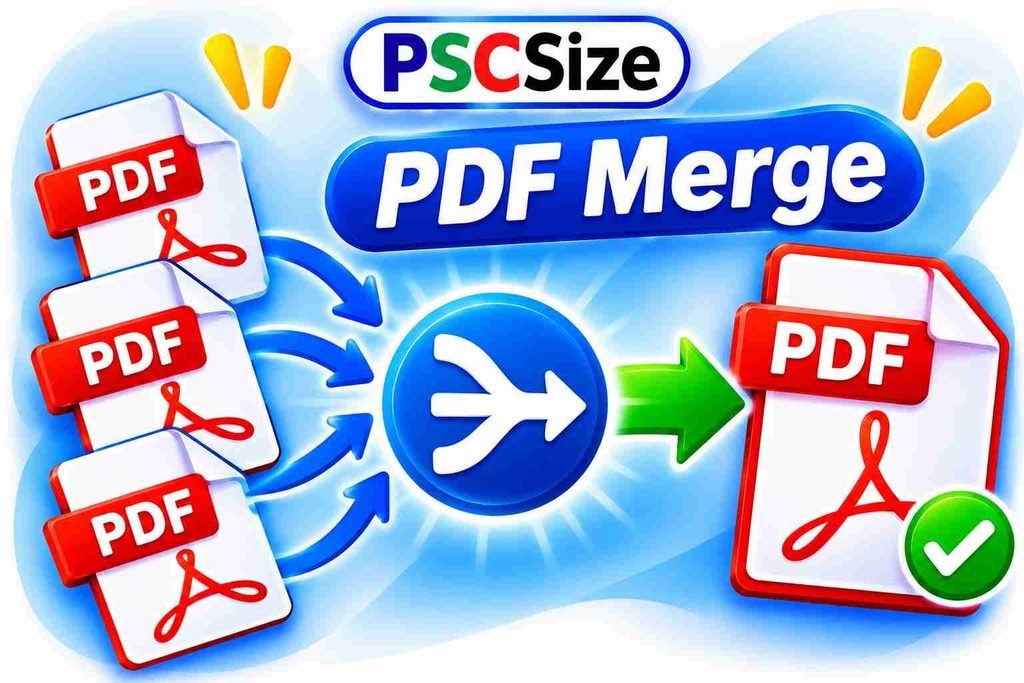
Open PSCSize PDF Merger, select two or more PDF documents, arrange their order, and click Merge PDF Files. Download your combined document once processing is complete.
2. Can I rearrange PDF documents before merging?
Yes. Use the up and down arrow buttons to change the position of selected files. The merger follows the displayed order when creating the final document.
3. Is there a limit to the number of PDFs I can join?
You can select multiple PDF documents. However, the practical limit depends on your device’s available memory and the size of the files.
4. Does this online PDF combiner work on smartphones?
Yes. PSCSize works through compatible web browsers on Android phones, iPhones, tablets, and computers.
5. Can I download the combined PDF with a custom file name?
Yes. Enter your preferred name in the Output File Name field before merging. Your final document will be saved with that name.
6. Are my documents uploaded to a website server during PDF merging?
No. This tool processes selected PDF files in your browser instead of uploading them to the PSCSize server. Its PDF processing library loads from a third-party CDN.